Créez vos propres applications 'Navigateur Web' et 'Enregistreur de bureau' à l'aide de PyGobject - Partie 3
Ceci est la 3ème partie de la série sur la création d’applications GUI sous le bureau Linux à l’aide de PyGObject. Aujourd’hui, nous allons parler de l’utilisation de certains modules et bibliothèques Python avancés dans nos programmes tels que 'os', 'WebKit', 'requests' et autres, en plus de quelques autres informations utiles pour la programmation.

Exigences
Vous devez parcourir toutes ces parties précédentes de la série à partir d’ici, pour continuer à donner des instructions supplémentaires sur la création de demandes plus avancées :
- Créer des applications GUI sous Linux Desktop à l’aide de PyGObject - Partie 1
- Création d’applications PyGobject avancées sur Linux - Partie 2
Les modules et bibliothèques en Python sont très utiles, au lieu d’écrire de nombreux sous-programmes pour faire des tâches compliquées qui prendront beaucoup de temps et de travail, vous pouvez simplement les importer ! Oui, il suffit d’importer les modules et les bibliothèques dont vous avez besoin dans votre programme et vous pourrez économiser beaucoup de temps et d’efforts pour terminer votre programme.
Il existe de nombreux modules célèbres pour Python, que vous pouvez trouver sur Python Module Index.
Vous pouvez également importer des bibliothèques pour votre programme Python, à partir de « gi.repository import Gtk » cette ligne importe la bibliothèque GTK dans le programme Python, il existe de nombreuses autres bibliothèques comme Gdk, WebKit.. etc.
Création d’applications GUI avancées
Aujourd’hui, nous allons créer 2 programmes :
- Un simple navigateur web ; qui utilisera la bibliothèque WebKit.
- Un enregistreur de bureau à l’aide de la commande 'avconv' ; qui utilisera le module 'os' de Python.
Je n’expliquerai pas comment glisser-déposer des widgets dans le concepteur Glade à partir de maintenant, je vais juste vous dire le nom des widgets que vous devez créer, en plus je vous donnerai le fichier .glade pour chaque programme, et le fichier Python bien sûr.
Création d’un navigateur Web simple
Afin de créer un navigateur Web, nous devrons utiliser le moteur « WebKit », qui est un moteur de rendu open-source pour le Web, c’est le même que celui utilisé dans Chrome/Chromium, pour plus d’informations à ce sujet, vous pouvez vous référer au site officiel Webkit.org site Web.
Tout d’abord, nous devrons créer l’interface graphique, ouvrir le concepteur Glade et ajouter les widgets suivants. Pour plus d’informations sur la création de widgets, suivez les parties 1 et 2 de cette série (liens ci-dessus).
- Créez le widget 'window1'.
- Créez les widgets 'box1' et 'box2'.
- Créez les widgets 'button1' et 'button2'.
- Créez le widget 'entry1'.
- Créez le widget 'scrolledwindow1'.

Après avoir créé des widgets, vous obtiendrez l’interface suivante.
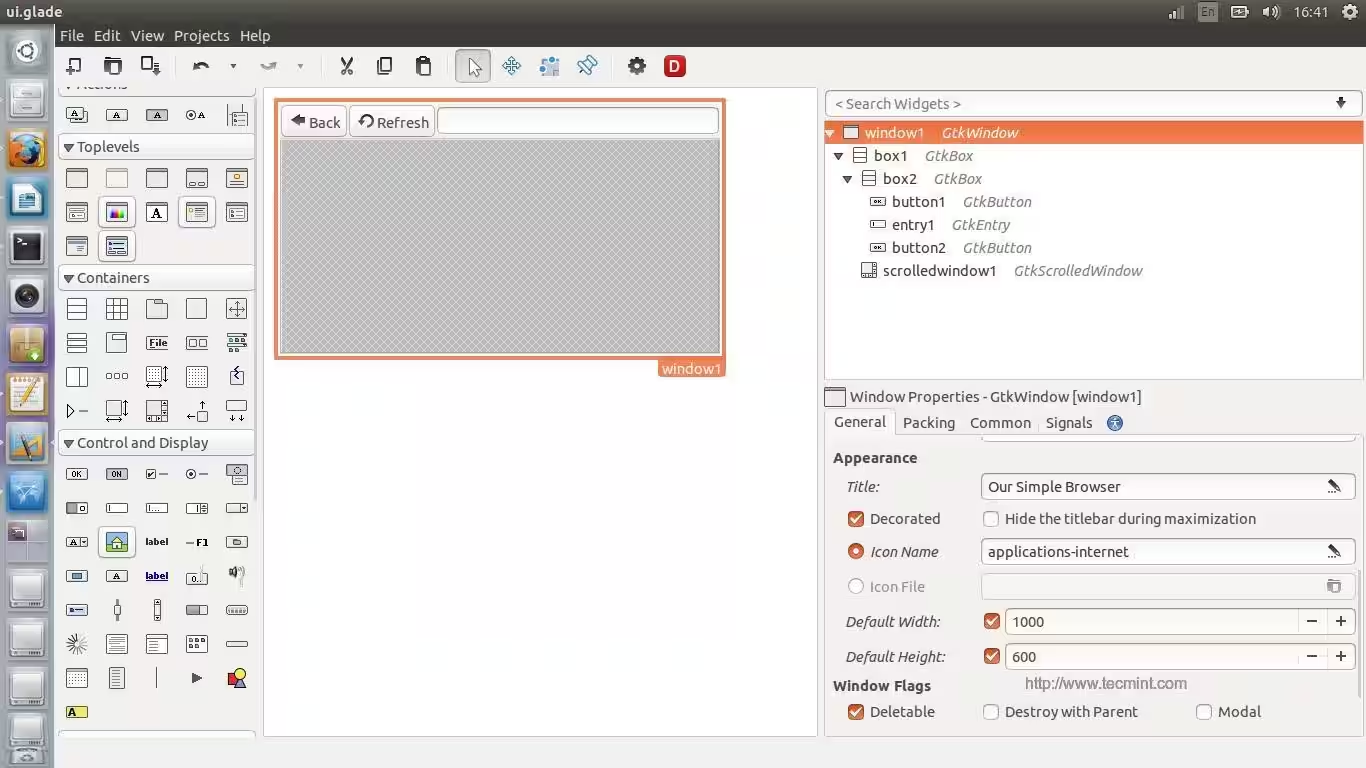
Il n’y a rien de nouveau, si ce n’est le widget « Scrolled Window » ; ce widget est important afin de permettre l’implantation du moteur WebKit à l’intérieur, à l’aide du widget « Fenêtre défilante », vous pourrez également faire défiler horizontalement et verticalement pendant que vous naviguez sur les sites Web.
Vous devrez maintenant ajouter le gestionnaire « backbutton_clicked » au signal « cliqué » du bouton Retour, le gestionnaire « refreshbutton_clicked » au bouton Refresh « signal cliqué » et le gestionnaire « enterkey_clicked » au signal « activé » de l’entrée.
Le fichier .glade complet pour l’interface est ici.
<?xml version="1.0" encoding="UTF-8"?>
<!-- Generated with glade 3.16.1 -->
<interface>
  <requires lib="gtk+" version="3.10"/>
  <object class="GtkWindow" id="window1">
    <property name="can_focus">False</property>
    <property name="title" translatable="yes">Our Simple Browser</property>
    <property name="window_position">center</property>
    <property name="default_width">1000</property>
    <property name="default_height">600</property>
    <property name="icon_name">applications-internet</property>
    <child>
      <object class="GtkBox" id="box1">
        <property name="visible">True</property>
        <property name="can_focus">False</property>
        <property name="orientation">vertical</property>
        <child>
          <object class="GtkBox" id="box2">
            <property name="visible">True</property>
            <property name="can_focus">False</property>
            <child>
              <object class="GtkButton" id="button1">
                <property name="label">gtk-go-back</property>
                <property name="visible">True</property>
                <property name="can_focus">True</property>
                <property name="receives_default">True</property>
                <property name="relief">half</property>
                <property name="use_stock">True</property>
                <property name="always_show_image">True</property>
                <signal name="clicked" handler="backbutton_clicked" swapped="no"/>
              </object>
              <packing>
                <property name="expand">False</property>
                <property name="fill">True</property>
                <property name="position">0</property>
              </packing>
            </child>
            <child>
              <object class="GtkButton" id="button2">
                <property name="label">gtk-refresh</property>
                <property name="visible">True</property>
                <property name="can_focus">True</property>
                <property name="receives_default">True</property>
                <property name="relief">half</property>
                <property name="use_stock">True</property>
                <property name="always_show_image">True</property>
                <signal name="clicked" handler="refreshbutton_clicked" swapped="no"/>
              </object>
              <packing>
                <property name="expand">False</property>
                <property name="fill">True</property>
                <property name="position">1</property>
              </packing>
            </child>
            <child>
              <object class="GtkEntry" id="entry1">
                <property name="visible">True</property>
                <property name="can_focus">True</property>
                <signal name="activate" handler="enterkey_clicked" swapped="no"/>
              </object>
              <packing>
                <property name="expand">True</property>
                <property name="fill">True</property>
                <property name="position">2</property>
              </packing>
            </child>
          </object>
          <packing>
            <property name="expand">False</property>
            <property name="fill">True</property>
            <property name="position">0</property>
          </packing>
        </child>
        <child>
          <object class="GtkScrolledWindow" id="scrolledwindow1">
            <property name="visible">True</property>
            <property name="can_focus">True</property>
            <property name="hscrollbar_policy">always</property>
            <property name="shadow_type">in</property>
            <child>
              <placeholder/>
            </child>
          </object>
          <packing>
            <property name="expand">True</property>
            <property name="fill">True</property>
            <property name="position">1</property>
          </packing>
        </child>
      </object>
    </child>
  </object>
</interface>
Copiez maintenant le code ci-dessus et collez-le dans le fichier « ui.glade » de votre dossier personnel. Créez maintenant un nouveau fichier appelé « mywebbrowser.py » et entrez le code suivant à l’intérieur, toutes les explications sont dans les commentaires.
#!/usr/bin/python
-*- coding: utf-8 -*-

## Here we imported both Gtk library and the WebKit engine.
from gi.repository import Gtk, WebKit

class Handler:

  def backbutton_clicked(self, button):
  ## When the user clicks on the Back button, the '.go_back()' method is activated, which will send the user to the previous page automatically, this method is part from the WebKit engine.
    browserholder.go_back()

  def refreshbutton_clicked(self, button):
  ## Same thing here, the '.reload()' method is activated when the 'Refresh' button is clicked.
    browserholder.reload()

  def enterkey_clicked(self, button):
  ## To load the URL automatically when the "Enter" key is hit from the keyboard while focusing on the entry box, we have to use the '.load_uri()' method and grab the URL from the entry box.
    browserholder.load_uri(urlentry.get_text())

## Nothing new here.. We just imported the 'ui.glade' file.
builder = Gtk.Builder()
builder.add_from_file("ui.glade")
builder.connect_signals(Handler())

window = builder.get_object("window1")

## Here's the new part.. We created a global object called 'browserholder' which will contain the WebKit rendering engine, and we set it to 'WebKit.WebView()' which is the default thing to do if you want to add a WebKit engine to your program.
browserholder = WebKit.WebView()

## To disallow editing the webpage.
browserholder.set_editable(False)

## The default URL to be loaded, we used the 'load_uri()' method.
browserholder.load_uri("https://linux-console.net")

urlentry = builder.get_object("entry1")
urlentry.set_text("https://linux-console.net")

## Here we imported the scrolledwindow1 object from the ui.glade file.
scrolled_window = builder.get_object("scrolledwindow1")

## We used the '.add()' method to add the 'browserholder' object to the scrolled window, which contains our WebKit browser.
scrolled_window.add(browserholder)

## And finally, we showed the 'browserholder' object using the '.show()' method.
browserholder.show()

## Give that developer a cookie !
window.connect("delete-event", Gtk.main_quit)
window.show_all()
Gtk.main()
Enregistrez le fichier et exécutez-le.
$ chmod 755 mywebbrowser.py
./mywebbrowser.py
Et c’est ce que vous obtiendrez.

Vous pouvez vous référer à la documentation officielle de WebKitGtk afin de découvrir plus d’options.
Création d’un enregistreur de bureau simple
Dans cette section, nous allons apprendre à exécuter des commandes système locales ou des scripts shell à partir du fichier Python à l’aide du module 'os', ce qui nous aidera à créer un enregistreur d’écran simple pour le bureau à l’aide de la commande 'avconv'.
Ouvrez le concepteur Glade et créez les widgets suivants :
- Créez le widget 'window1'.
- Créez le widget 'box1'.
- Créez les widgets 'button1', 'button2' et 'button3'.
- Créez le widget 'entry1'.

Après avoir créé les widgets ci-dessus, vous obtiendrez l’interface ci-dessous.

Voici le fichier ui.glade complet.
<?xml version="1.0" encoding="UTF-8"?>
<!-- Generated with glade 3.16.1 -->
<interface>
  <requires lib="gtk+" version="3.10"/>
  <object class="GtkWindow" id="window1">
    <property name="can_focus">False</property>
    <property name="title" translatable="yes">Our Simple Recorder</property>
    <property name="window_position">center</property>
    <property name="default_width">300</property>
    <property name="default_height">30</property>
    <property name="icon_name">applications-multimedia</property>
    <child>
      <object class="GtkBox" id="box1">
        <property name="visible">True</property>
        <property name="can_focus">False</property>
        <child>
          <object class="GtkEntry" id="entry1">
            <property name="visible">True</property>
            <property name="can_focus">True</property>
          </object>
          <packing>
            <property name="expand">False</property>
            <property name="fill">True</property>
            <property name="position">0</property>
          </packing>
        </child>
        <child>
          <object class="GtkButton" id="button1">
            <property name="label">gtk-media-record</property>
            <property name="visible">True</property>
            <property name="can_focus">True</property>
            <property name="receives_default">True</property>
            <property name="use_stock">True</property>
            <property name="always_show_image">True</property>
            <signal name="clicked" handler="recordbutton" swapped="no"/>
          </object>
          <packing>
            <property name="expand">True</property>
            <property name="fill">True</property>
            <property name="position">1</property>
          </packing>
        </child>
        <child>
          <object class="GtkButton" id="button2">
            <property name="label">gtk-media-stop</property>
            <property name="visible">True</property>
            <property name="can_focus">True</property>
            <property name="receives_default">True</property>
            <property name="use_stock">True</property>
            <property name="always_show_image">True</property>
            <signal name="clicked" handler="stopbutton" swapped="no"/>
          </object>
          <packing>
            <property name="expand">True</property>
            <property name="fill">True</property>
            <property name="position">2</property>
          </packing>
        </child>
        <child>
          <object class="GtkButton" id="button3">
            <property name="label">gtk-media-play</property>
            <property name="visible">True</property>
            <property name="can_focus">True</property>
            <property name="receives_default">True</property>
            <property name="use_stock">True</property>
            <property name="always_show_image">True</property>
            <signal name="clicked" handler="playbutton" swapped="no"/>
          </object>
          <packing>
            <property name="expand">True</property>
            <property name="fill">True</property>
            <property name="position">3</property>
          </packing>
        </child>
      </object>
    </child>
  </object>
</interface>
Comme d’habitude, copiez le code ci-dessus et collez-le dans le fichier « ui.glade » dans votre répertoire personnel, créez un nouveau fichier « myrecorder.py » et entrez le code suivant à l’intérieur (chaque nouvelle ligne est expliquée dans les commentaires).
#!/usr/bin/python
-*- coding: utf-8 -*-

## Here we imported both Gtk library and the os module.
from gi.repository import Gtk
import os

class Handler:
  def recordbutton(self, button):
    ## We defined a variable: 'filepathandname', we assigned the bash local variable '$HOME' to it + "/" + the file name from the text entry box.
    filepathandname = os.environ["HOME"] + "/" + entry.get_text()

    ## Here exported the 'filepathandname' variable from Python to the 'filename' variable in the shell.
    os.environ["filename"] = filepathandname

    ## Using 'os.system(COMMAND)' we can execute any shell command or shell script, here we executed the 'avconv' command to record the desktop video & audio.
    os.system("avconv -f x11grab -r 25 -s `xdpyinfo | grep 'dimensions:'|awk '{print $2}'` -i :0.0 -vcodec libx264 -threads 4 $filename -y & ")


  def stopbutton(self, button):
    ## Run the 'killall avconv' command when the stop button is clicked.
    os.system("killall avconv")

  def playbutton(self, button):
  ## Run the 'avplay' command in the shell to play the recorded file when the play button is clicked.
    os.system("avplay $filename &")


## Nothing new here.. We just imported the 'ui.glade' file.
builder = Gtk.Builder()
builder.add_from_file("ui.glade")
builder.connect_signals(Handler())

window = builder.get_object("window1")
entry = builder.get_object("entry1")
entry.set_text("myrecording-file.avi")

## Give that developer a cookie !
window.connect("delete-event", Gtk.main_quit)
window.show_all()
Gtk.main()
Exécutez maintenant le fichier en appliquant les commandes suivantes dans le terminal.
$ chmod 755 myrecorder.py
./myrecorder.py
Et vous avez obtenu votre premier enregistreur de bureau.

Vous pouvez trouver plus d’informations sur le module 'os' sur la bibliothèque Python OS.
Et voilà, la création d’applications pour le bureau Linux n’est pas difficile avec PyGObject, il suffit de créer l’interface graphique, d’importer quelques modules et de lier le fichier Python avec l’interface graphique, ni plus, ni moins. Il existe de nombreux tutoriels utiles pour ce faire sur le site Web PyGObject :
Avez-vous essayé de créer des applications à l’aide de PyGObject ? Qu’en pensez-vous ? Quelles applications avez-vous développées auparavant ?